Mastering the Google Spreadsheet Update Your Ultimate Guide
A definitive guide to the Google Spreadsheet update. Learn to automate with Apps Script, integrate with APIs, and build real-time data syncs for any workflow.
By Sanket Sahu
8th Feb 2026
Last updated: 8th Feb 2026

There are a handful of ways to get new data into a Google Sheet, and they range from a quick copy-paste to a full-blown API integration. The right approach really comes down to what you're trying to accomplish, who's doing the work, and how often the numbers need to be fresh.
Choosing the Right Update Method for Your Google Sheet
Before you even think about code, you need to match your strategy to the actual business need. Trust me, over-engineering a simple report with the Google Sheets API is just as painful as manually updating a dashboard that your team relies on for real-time decisions. It's all about understanding the trade-offs.
A finance team grabbing an annual budget snapshot? A one-time manual copy-and-paste is perfectly fine. But an operations manager who needs to sync inventory levels every Monday morning could save hours with a simple, scheduled Google Apps Script. And if you're building a live sales dashboard that pulls from your CRM, anything less than an API or webhook integration just won't cut it.
Finding Your Ideal Workflow
The best solution always balances effort with impact. A little script might save your team a few hours of mind-numbing work each week, while a solid API connection can become the backbone of an essential internal tool. The goal is to pick the simplest method that gets the job done reliably without adding a bunch of technical debt you'll have to deal with later. Always consider the update frequency, where the data lives, and who will be responsible for keeping it running.
This decision tree gives you a good visual for figuring out which path to take.
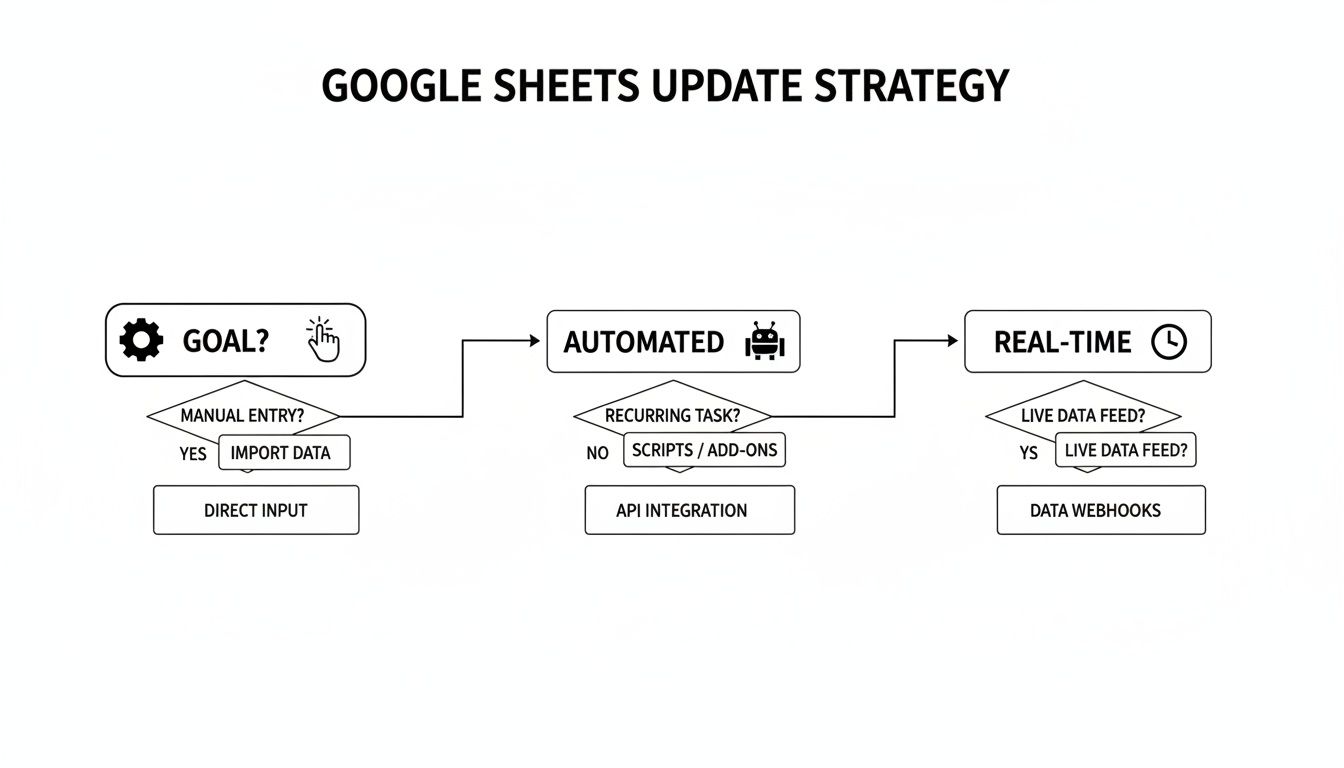
As you can see, your main goal—whether it's a quick fix, a scheduled refresh, or an instant update—is the biggest factor in choosing your tool.
The most common mistake I see is teams sticking with manual updates for tasks they do over and over again. A 30-minute investment in a simple Apps Script can easily save hundreds of hours over a year, not to mention it gets rid of human error and frees people up for more important work.
Ultimately, picking your method boils down to answering three simple questions:
- How often does the data need to be refreshed? (Instantly, hourly, daily, weekly?)
- Where is the source data coming from? (Another sheet, a platform like Salesforce, a database?)
- What’s your team’s technical comfort level? (No-code, basic scripting, or professional developers?)
Once you have the answers, you can confidently decide whether a quick manual edit, a scheduled script, or a more robust API connection is the way to go.
Comparison of Google Sheet Update Methods
To make it even clearer, here’s a quick breakdown of the different methods, what they're good for, and how much work is involved.
| Update Method | Best For | Complexity | Speed |
|---|---|---|---|
| Manual Edits | One-off tasks, quick fixes, or small, infrequent updates. | Very Low | Instant (but manual) |
| Google Apps Script | Scheduled, recurring tasks (e.g., daily reports, weekly summaries). | Low to Medium | Scheduled (e.g., hourly, daily) |
| Google Sheets API | Integrating with custom apps, complex data pipelines, and high-volume updates. | High | Near Real-Time |
| Webhooks/Triggers | Event-driven updates from other platforms (e.g., a new sale in your CRM). | Medium to High | Real-Time |
| Third-Party Tools | Syncing data from other SaaS tools without writing code. | Low | Varies (often near real-time) |
This table should give you a solid starting point. As you can see, there’s a clear trade-off between the ease of a method and its power and speed.
Automating Your Workflow with Google Apps Script
Manual edits get the job done, but when you need updates to happen on a schedule or in response to something changing, it's time to let automation take over. This is where Google Apps Script comes into play. It’s essentially JavaScript built right into Google Sheets, letting you write custom functions, add new menu items, and set up triggers that run in the background.
Think of it like teaching your spreadsheet to perform its own chores. Instead of you having to clean up a messy data export every Monday morning, you can write a script to do it for you automatically at 8 AM. The real magic is crafting solutions that fit your team’s exact process, all without ever leaving the Google ecosystem.
Getting Started with the Script Editor
Jumping into the script editor is painless. From your Google Sheet, just go to Extensions > Apps Script. This will pop open a new tab with the project editor, which is where you’ll write, test, and save your code. And don't be intimidated if you're not a developer; many of the most useful automations are surprisingly simple.
For instance, let's say your finance team needs to log the exact moment an invoice status is flipped to "Paid." You can do this with a simple onEdit(e) function. This special function is a simple trigger, meaning it runs automatically every time a user edits any cell.
Your script can be written to watch for two things: was the edit in the "Status" column, and was the new value "Paid"? If both are true, it can instantly drop a timestamp in the adjacent "Payment Date" column. This tiny automation saves time, prevents mistakes, and builds a perfect audit trail with zero extra work from your team.
A common misconception is that you need to be a coding wizard to build useful automations. From my experience, the most impactful scripts are often just 10-20 lines long. They do one small, repetitive thing perfectly, and that’s what makes them so powerful.
Practical Automation Examples for Operations Teams
The possibilities go way beyond just adding timestamps. Apps Script can talk to other Google services like Gmail, Calendar, and Drive, letting you build some seriously powerful workflows that connect your different tools.
Here are a few real-world scenarios where an Apps Script update can be a total game-changer:
- Automated Email Alerts: Imagine an inventory sheet. A script could run every morning to check stock levels. If an item's quantity drops below a set threshold, like 10 units, it could fire off an email directly to the supply chain manager.
- Data Archiving: A project tracker can get incredibly cluttered with completed tasks. You could set a time-driven trigger to run every Friday afternoon, find all rows marked "Complete," copy them over to a separate "Archive" sheet, and then clear them out of the active list.
- Creating Custom Functions: What if you need to pull live data from an external API, like for currency conversion? You can write a custom function, maybe
=getExchangeRate("USD", "EUR"), that fetches the real-time rate and puts it right in a cell. It works just like a built-in function such asSUM()orVLOOKUP().
With these kinds of automations, your spreadsheet stops being a static grid of data and becomes a dynamic tool that actively helps you manage your work. By taking over the tedious, repeatable tasks, Apps Script lets your team focus on what really matters—analyzing the data, not just entering it.
Connecting External Apps with the Google Sheets API
While Google Apps Script is fantastic for automating tasks inside Google Workspace, let's be realistic—your most important data probably lives somewhere else. It's in your company's production database, a custom-built internal tool, or a third-party service. This is where the Google Sheets API comes in. It’s the bridge that lets your external applications programmatically read, write, and format data directly in your sheets.
Think of the API as a universal translator for your software. It allows your custom code to speak directly to Google Sheets in a secure and scalable way. This is the go-to method for building serious data pipelines, like automatically feeding sales numbers from your CRM into a forecasting model or pushing user activity logs from your app into a sheet for analysis.
Setting Up Your First API Connection
To get started, you'll have to pop the hood and dive into the Google Cloud Platform (GCP) console. Don't worry, it's a one-time setup. The process involves creating a GCP project, enabling the Google Sheets API for that project, and then generating credentials so your app can prove it has permission to make changes.
You have two main paths for handling authentication:
- OAuth 2.0: This is for when your application needs to act on behalf of a human user. The user sees a consent screen, grants permission, and your app gets a temporary token. It's the standard for any user-facing tool where someone logs in with their Google account.
- Service Accounts: This is my preferred method for backend, server-to-server integrations where no person is clicking a button. You create a special "robot" account, share your Google Sheet with its unique email address, and your application uses a private key to authenticate itself. It’s clean and secure.
For most automated workflows, like a nightly sync from your database, a service account is the simplest and most robust choice.
Practical Scenarios For API-Driven Updates
Once your application is authenticated, you can do some really powerful things. The Sheets API isn't just about dumping values into cells; it's designed for high-performance data manipulation, especially when you need a bulk Google spreadsheet update.
Here’s a real-world example I see all the time with finance teams. They have raw transaction data sitting in a SQL database. Instead of someone manually running a query, exporting a CSV, and importing it into a Sheet, a simple Python script can use the API to fetch thousands of rows and append them in a single, efficient call.
This isn't just faster; it virtually eliminates the risk of human error. You can schedule that script to run every hour, ensuring your financial dashboards are always up-to-date without anyone lifting a finger.
The real game-changer with the Sheets API isn't just writing data—it's the ability to perform batch updates. You can bundle multiple operations, like updating values, changing cell colors, and resizing columns, into a single request. This massively cuts down on API calls and boosts performance.
Managing Scopes And Rate Limits
When you create your credentials, you’ll define scopes, which are the specific permissions your app has. You can grant read-only access, read-write access, or full control. My advice? Always follow the principle of least privilege. Only grant the absolute minimum permissions your application needs to do its job.
Finally, you have to be aware of API rate limits. Google restricts how many requests you can make to prevent any single service from overwhelming their servers. For the Sheets API, the limit is typically 100 read requests and 100 write requests per user per minute. If you’re building a high-volume integration, you need to design for this by batching your requests and implementing an "exponential backoff" strategy to retry failed requests gracefully.
Getting Real-Time Updates with Webhooks
Scheduled updates with Apps Script or API calls are great, but some workflows just can't wait. When something happens right now, you need that data in your sheet right now. This is where webhooks come in, allowing other applications to send a Google spreadsheet update the very moment an event occurs.
Think of it this way: instead of your script constantly asking, "Is there anything new?", webhooks flip the model entirely. An external service—like your e-commerce platform, a payment processor, or a form tool—actively pushes data to a special URL you create. That push, called a payload, instantly triggers your script. Your spreadsheet becomes event-driven.
For ops and finance teams, this is a game-changer. Imagine a sales tracker that logs an order the second a customer hits "buy," or an inventory sheet that adjusts stock levels in real time as sales happen across different channels. That’s the power of webhooks.
Building Your Webhook Listener in Apps Script
To catch this incoming data, you'll need to set up a simple web app using Google Apps Script. It sounds more intimidating than it is. At its core, you just need a special function called doPost(e) that acts as the endpoint, or the "catcher's mitt," for the data sent from the other service.
Here's how it works in a nutshell:
- Deploy the Script: First, you deploy your Apps Script project as a "web app." Google then generates a unique URL for you. This URL is your webhook receiver.
- Handle the Payload: You take that URL and paste it into the webhook settings of the external service (like Shopify or Stripe). When an event happens over there, that service sends an HTTP POST request to your URL, packed with all the relevant data, usually in JSON format.
Your doPost(e) function grabs this incoming JSON payload, pulls out the specific pieces of information you care about—like a customer's name, the product ID, and the price—and writes those values directly into your Google Sheet.
The beauty of a webhook is its incredible efficiency. Your script literally does nothing—it consumes zero resources—until it gets that push notification. This makes it far more scalable than a script that has to run every single minute just to check for new data.
A Practical E-Commerce Example
Let's make this real. An online store just got a new sale, and the fulfillment team needs to see it immediately in their "Sales Tracker" sheet.
Here’s the webhook workflow in action:
- The Trigger: A customer finalizes their purchase on your website.
- Webhook Fires: Your e-commerce platform immediately sends a JSON payload with all the order details to your Apps Script web app URL.
- Data is Parsed: Your
doPost(e)function wakes up and receives the data. It specifically looks insidee.postData.contentsto get the JSON string. - Sheet is Updated: The script then decodes the JSON to grab key values like
order_id,customer_email, andtotal_amount. - New Row is Added: Finally, it uses the trusty
sheet.appendRow()method to add a new line to the sales tracker with all the fresh order info.
This whole process takes just a few seconds. The fulfillment team sees the new order pop up in their sheet almost instantly, so they can get to work on shipping. Your simple Google Sheet has just become a dynamic, real-time dashboard for your operations, all driven by external events.
Integrating Sheet Updates with Internal Tools Like Flydash
Alright, let's talk about the final piece of the automation puzzle: connecting Google Sheets to your team’s internal tools. Operations and finance teams often rely on custom dashboards for everything from tracking projects to crunching financial numbers. Building these from scratch is a huge lift, which is why many smart teams opt for a hybrid approach—using Sheets as the reliable backend and building a user-friendly front end on top of it.
This is where a platform like FlyDash really shines. It lets you create a custom interface that’s powered by your existing spreadsheet data. This gives your team a clean, purpose-built application to work with, while all the data still lives in a Google Sheet. It’s the best of both worlds: a great user experience on the front end and a familiar, powerful database on the back end.
Creating a Two-Way Data Sync
A truly effective integration isn't just about pulling data from a sheet. It's about creating a genuine two-way sync. Imagine a team member updating a project status inside your FlyDash app. That change can be instantly written back to the correct cell in your Google Sheet via the API. And if someone else makes a manual google spreadsheet update directly in the sheet? That change pops up in the app almost immediately.
This setup creates a seamless, real-time environment where the app and the sheet are always perfectly in sync. You completely eliminate version control headaches. Team members can work in the interface that makes the most sense for them, whether that’s the custom app or the raw spreadsheet itself.
Google Sheets is built for this kind of collaborative work. Its automatic version history is a lifesaver, capturing every single edit, timestamping the change, and showing you exactly who made it. In fact, teams that lean on this feature have seen a 45% reduction in data errors compared to messing with outdated manual versioning. You can find more practical tips on Google Sheets' collaborative features on ablebits.com.
This is a great example of how a custom dashboard can turn raw spreadsheet data into something much more visual and intuitive.
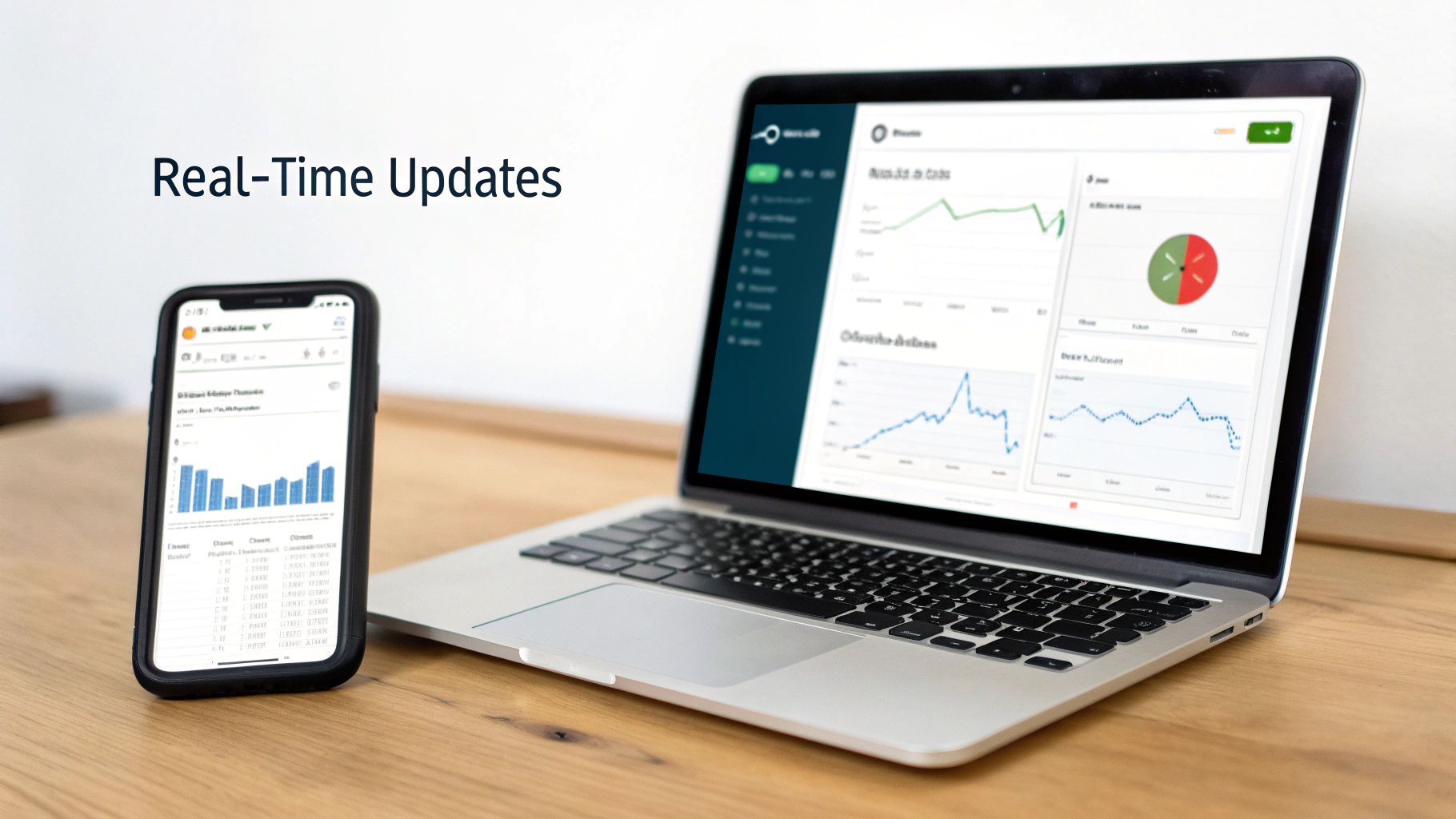
You're essentially transforming a simple grid of data into an interactive tool with live charts and summaries, making it incredibly easy for stakeholders to get the information they need at a glance.
The real win here is accessibility. You give non-technical users a simple, clean interface to view and edit complex data, while still retaining the full power and flexibility of Google Sheets as your single source of truth on the backend.
Benefits of This Integrated Approach
So, what are the tangible benefits of connecting Sheets to a custom front end? Here’s what I’ve seen make the biggest impact for teams.
- Improved User Experience: Instead of getting lost in a spreadsheet with dozens of tabs, your team gets a purpose-built app designed for their specific workflow. It’s just cleaner.
- Enhanced Data Integrity: By funneling inputs through an app, you can enforce validation rules—like dropdowns instead of free-text fields—which drastically cuts down on common data entry mistakes.
- Centralized Data Source: Everyone is working from the same sheet. No more conflicting copies or wondering which version is the "right" one. You have a single, consistent source of truth across the entire organization.
Common Questions About Google Spreadsheet Updates
As you start automating your spreadsheets, you're bound to run into a few common hurdles. Figuring out the best way to connect your tools and keep data flowing is key to building a system that actually works for your team. Let's tackle some of the most frequent questions I hear.
How Do I Update a Sheet from Another App?
When you need to push a google spreadsheet update from an external app—say, your CRM or a project management tool—the Google Sheets API is your most direct and powerful route. You'll need to set up authentication in your Google Cloud project (a service account is usually best for this kind of server-to-server work) and then use an API client in your app's native language to send data to the right cells.
If you’d rather skip the code, platforms like Zapier are fantastic. They act as a bridge, connecting thousands of apps to Google Sheets and letting you create "Zaps" that trigger updates automatically when something happens in another system.
Apps Script vs The Google Sheets API
This is a big one, and it's easy to get them mixed up. Here's how I think about it:
- Google Apps Script is for automation that lives inside the Google ecosystem. It’s perfect for tasks like automatically sending an email from Gmail when a cell value changes or creating a calendar event directly from a row in your sheet.
- The Google Sheets API is your gateway to the outside world. You’ll want to use this when an external application, a custom database, or a third-party service needs to read from or write to your spreadsheet.
A good rule of thumb: If both the trigger and the action live inside Google Workspace, start with Apps Script. If any part of the workflow touches an external tool, the API is almost always the more robust and scalable choice.
Can I Get Notified When a Sheet Is Updated?
Yes, and you have a couple of options. The simplest way is using the built-in notification settings. Just go to Tools > Notification settings and you can get an email digest or an instant alert whenever changes are made. It's a quick and easy solution.
For more granular control, you can write a simple Apps Script using an onEdit() trigger. This special function runs automatically every time a user makes an edit. With this, you can build custom logic—for example, if a project's status column changes to "Approved," you could have the script fire off a tailored email or a Slack message to the project channel. This ensures the right people know about critical updates the moment they happen.
Ready to build powerful internal tools on top of your Google Sheets without the headache? With FlyDash, you can generate a complete working app from a simple description, creating a user-friendly interface that stays perfectly in sync with your data. Start building faster at https://flydash.io.
Ready to Build Your App?
Turn your idea into a production-ready React Native app in minutes.
Free tools to get you started
Free AI PRD Generator
Generate a professional product requirements document in seconds. Describe your product idea and get a complete, structured PRD instantly.
Try it freeFree AI App Name Generator
Generate unique, brandable app name ideas with AI. Get creative name suggestions with taglines, brand colors, and monogram previews.
Try it freeFree AI App Icon Generator
Generate beautiful, professional app icons with AI. Describe your app and get multiple icon variations in different styles, ready for App Store and Google Play.
Try it freeFrequently Asked Questions
RapidNative is an AI-powered mobile app builder. Describe the app you want in plain English and RapidNative generates real, production-ready React Native screens you can preview, edit, and publish to the App Store or Google Play.